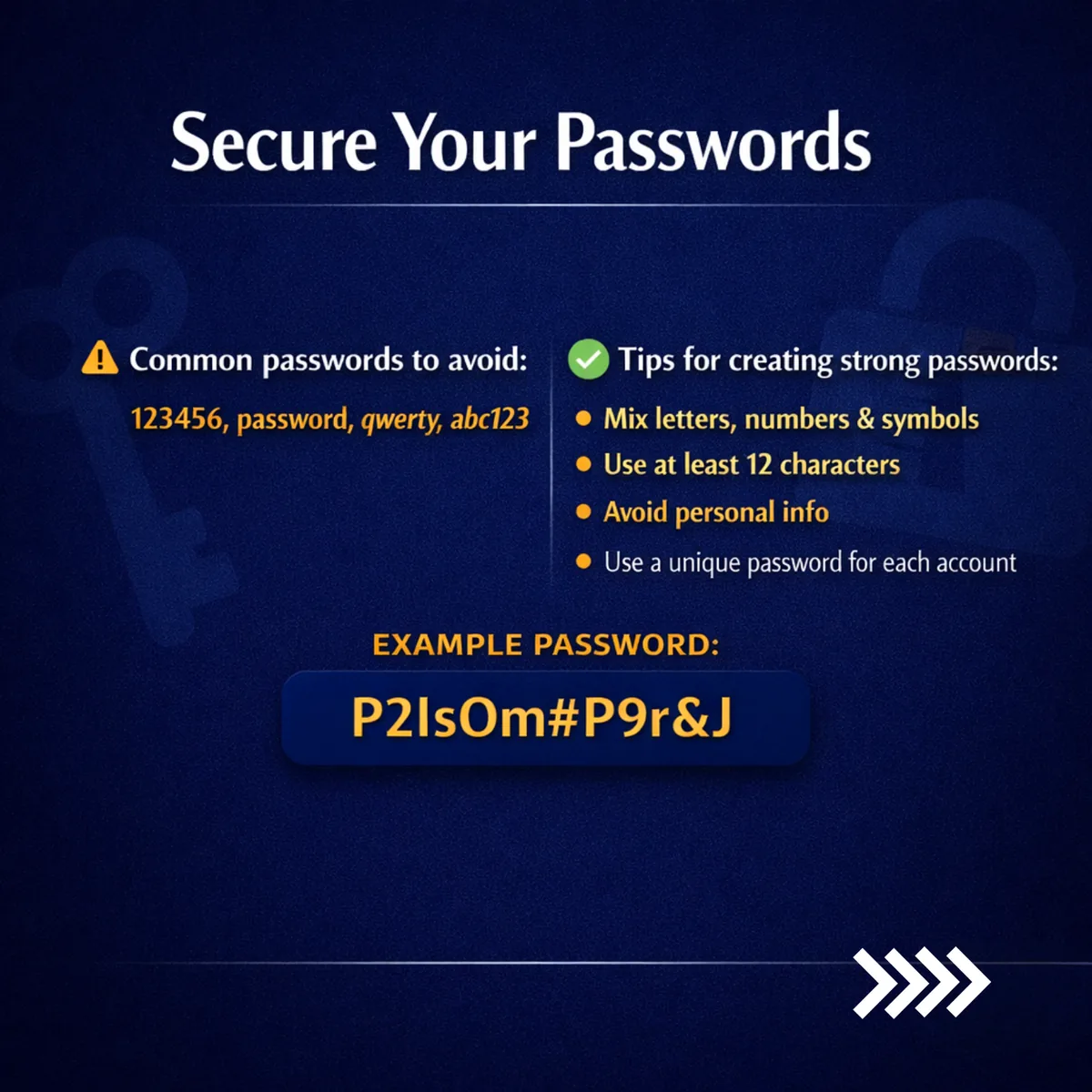
Your WiFi password, router administrator password and online account passwords have different jobs. The WiFi password lets devices join your home network. The administrator password controls router settings. Email and other account passwords protect those individual services. Avoid using the same password across them.
Choose a long, unique password
Use a password manager to generate and store a different password for each online account. For a password you must remember, choose a long passphrase made from unrelated words. Avoid names, birthdays, phone numbers and passwords copied from a public example. Protect your password manager with a strong master password.
Add another layer of protection
Enable multifactor authentication wherever it is offered, especially for email and other important accounts. Never share sign-in codes with someone who calls or messages you. Open the service's official app or website yourself when reviewing a security alert rather than following an unexpected link.
Before changing your home WiFi password
Make sure you can access the router settings using the correct instructions for your model. Plan to reconnect phones, laptops, televisions and other devices afterwards. Changing the WiFi password does not automatically change the router administrator password or your customer portal password.
If you think a password has been exposed
Change it through the service's official settings and replace it on any other account where you reused it. Review signed-in devices and recovery details, and sign out sessions you do not recognise. Follow the account provider's recovery process if you cannot sign in.
Need help with your Pamoja router?
Use our Huawei or Tenda password guide if it matches your equipment. If you are unsure, contact Pamoja support with the router model and a description of the problem, not your passwords or security codes. Avoid a factory reset unless support has advised it, because it can remove settings needed for your fibre connection.