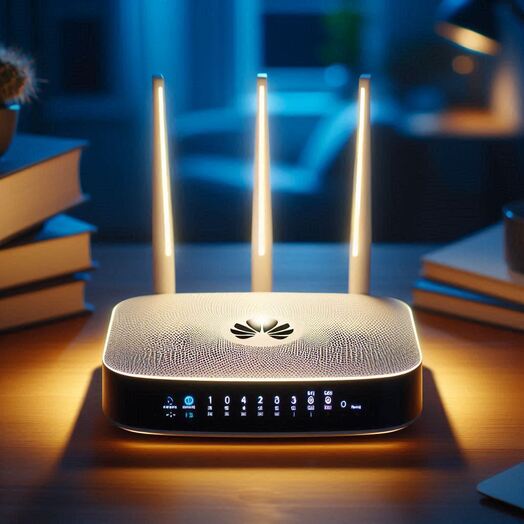
Step 1. Connect to your WiFi. Step 2. Open browser on your phone or laptop and type the router IP address: 192.168.100.1 Step 3. Enter the login details printed on your router label or provided by the Pamoja support team. Do not share your router administrator password. Step 4. Once logged in, click WLAN on the horizontal menu. Step 5. Find the SSID name (WiFi name), then locate the WPA pre-shared key setting. Step 6. Enter a strong new password and click Apply. Step 7. Forget the old WiFi network on your devices and reconnect with the new password.